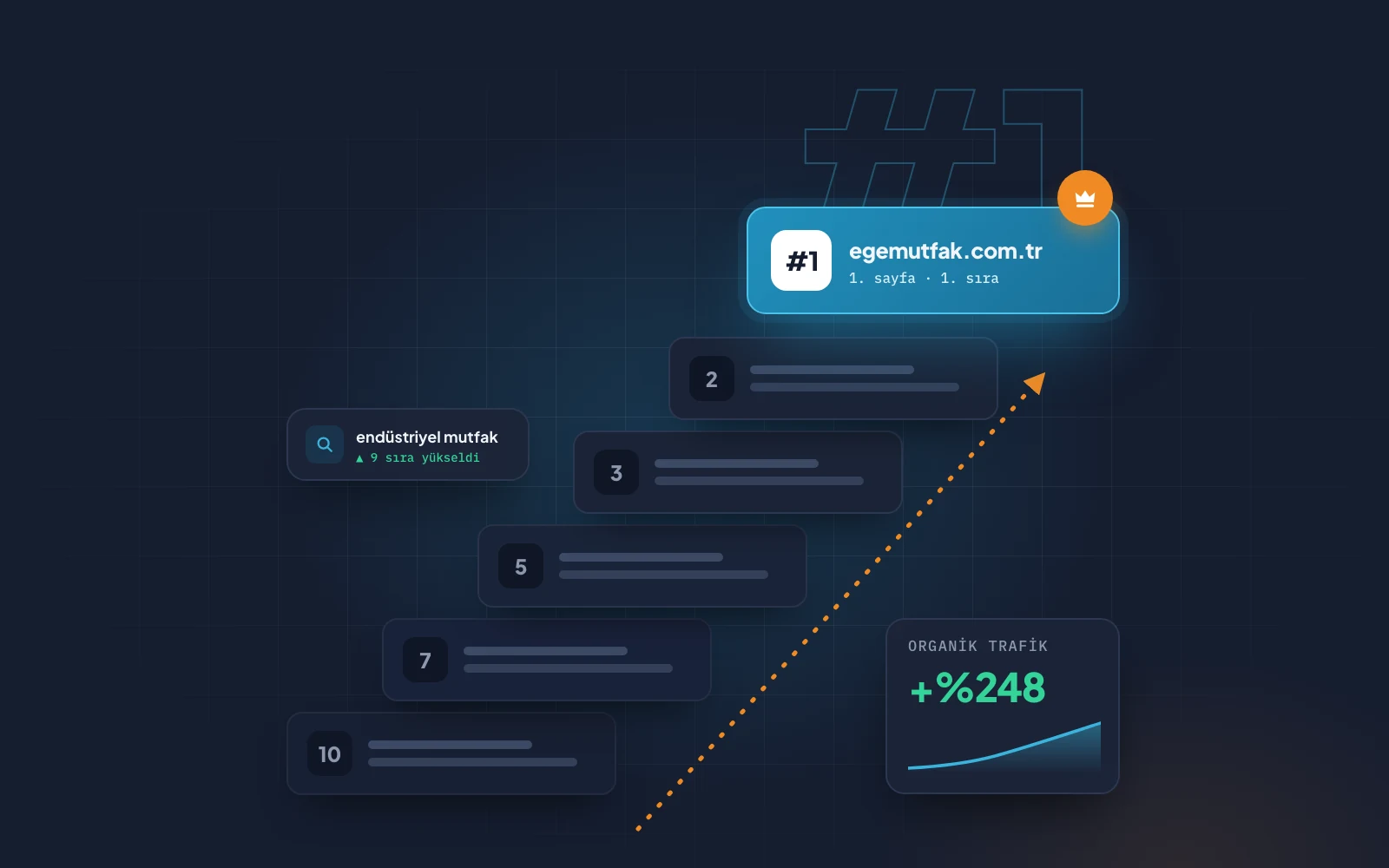

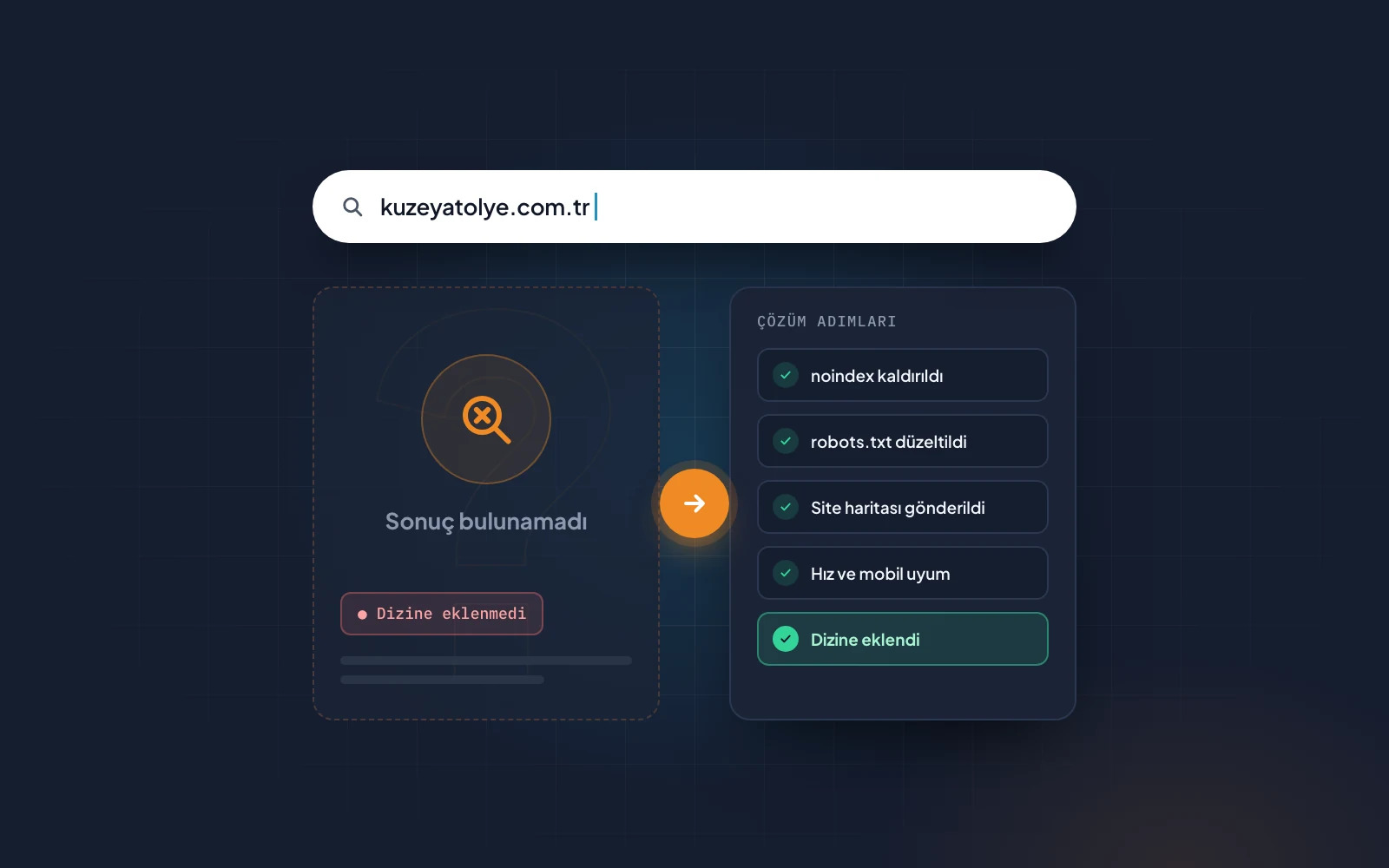
If you own a website and find yourself saying “my site isn't showing up on Google,” there could be a number of different technical reasons behind it. Pinpointing the source of the problem is the first step toward an effective fix and lasting visibility on Google. In this guide you'll find practical diagnostic and repair methods you can apply to your own site right away, plus the situations where you should turn to professional technical SEO support.
Why Isn't My Website Showing on Google?
A website missing from Google search results rarely comes down to a single cause. The root of the problem is usually one or more of the following four situations:
- Newly Launched Site: Google may not have discovered your site yet.
- Indexing Problem: Your site, or some of its pages, may not be crawled or added to Google's index.
- Technical Access Issue: Search engines may be unable to reach your site because of robots.txt, noindex, server access, redirects or HTTP errors.
- Low Ranking Problem: Your site may be indexed but not ranking high enough for your target keywords.
How to Check Whether Your Website Is Indexed by Google
To quickly see whether your site appears in Google's index, you can use the site: search operator.
- Search Google for site:yourdomain.com. The pages that appear are the pages of yours that are stored in Google's index.
- This method is handy, but it doesn't provide a precise or complete indexing report. Results can change over time, especially for new or dynamic sites.
Checking Indexing with Google Search Console
Google Search Console (GSC) is one of the main tools for technically checking search visibility. You can audit how your site and its pages are indexed with the following steps:
1. URL Inspection
- Enter the full URL of your page in Search Console.
- You'll immediately see whether it's indexed on Google, blocked, or affected by some other issue.
- If the page isn't indexed, you can use the “Request indexing” feature to ask Google to crawl it again.
2. Page Indexing Report
- The full crawling and indexing status of your site is shown in detail in the “Pages” or “Indexing” section.
- Here you can find details such as crawl errors and excluded or blocked pages.
3. Submitting a Sitemap
- Add your XML sitemap to GSC. A sitemap helps Google discover your site more easily.
- Submitting a sitemap doesn't guarantee indexing, but it can speed up discovery.
4. Live URL Test
- Instantly test whether a specific page has a crawling or indexing problem.
- If the page can't be reached, you can see the reasons in detail, such as a server error, a block or missing content.
Could Your Robots.txt File Be Blocking Google?
The robots.txt file is used to restrict search engine bots' access to your site or to specific pages. Restrictions set with the Disallow directive prevent Googlebot from crawling certain sections. However, robots.txt only limits crawling; it does not permanently remove pages that are already indexed. Robots.txt and the noindex tag are different things: the noindex tag is what removes a page from search results.
What Is the Noindex Tag and How Do You Check It?
The noindex tag (meta robots="noindex") is HTML metadata that tells Google not to keep a page in its index. The X-Robots-Tag, which does the same job, can also be sent at the server level through HTTP headers. If a page isn't showing on Google, start with these checks:
- Does the page code contain a <meta name="robots" content="noindex"> tag?
- Do the server response headers include X-Robots-Tag: noindex?
How Do Canonical URL Errors Affect Visibility on Google?
When you have duplicate content or several versions of a similar page, you use the rel="canonical" tag to tell Google which version is the primary one. If the wrong canonical URL is set, the page you actually want to show may not appear on Google, a different page may be indexed instead, or the content may be left out of the index entirely.
What Is an XML Sitemap and Why Does It Matter?
An XML sitemap is a file that helps search engines discover the important pages on your site. Submitting a sitemap makes it easier for Google to learn about new content and your site structure. But adding a sitemap does not guarantee indexing on its own. Other technical and content barriers still need to be removed.
How Do Server and HTTP Errors Affect Google Crawling?
When Googlebot can't reach your site or runs into HTTP error codes, it can't index the affected pages. Some of these error types are:
- 404 Not Found: The page can't be found. Not every 404 is harmful for SEO, but an important page that frequently returns this error may be dropped from Google's index.
- 403 Forbidden: The server refuses access.
- 500-Series (5xx) Errors: There's a technical error on the server.
- DNS Issues or Incorrect Redirects: If Google can't reach the site at all or gets stuck in a redirect loop, indexing is blocked.
When Will a New Website Show Up on Google?
If you've just launched a new website, it can take varying amounts of time for Google to discover and index it. Submitting a sitemap can speed up the process, but it's not possible to give an exact timeframe. External links, site structure and technical setup directly affect how quickly a site is discovered.
Website Not Showing on Google After a Migration
If you've changed your domain, platform or URL structure, pay attention to the following technical points:
- 301 Redirects: Old pages need to be permanently redirected to their new addresses. Missing or faulty redirects prevent both users and Googlebot from reaching the new pages.
- SEO Migration Checks: Check whether the mapping between old and new URLs has been set up correctly.
- HTTPS Switch: The certificate must be installed correctly and redirects configured properly.
Technical mistakes made during a migration can cause serious losses in your Google rankings and visibility. For more details, see our Website Migration Services page.
Indexing Issues on WordPress and Custom-Built Sites
On WordPress Sites:
- The “Discourage search engines from indexing this site” setting may be turned on (check it under Settings > Reading).
- SEO plugins (e.g. Yoast SEO, All in One SEO) may have a global or page-level noindex setting applied.
On Custom Software or Platforms Like Laravel:
- Make sure meta directives are sent correctly on dynamically generated pages.
- Test whether the server-side response headers contain a noindex or a robots.txt block.
On All Platforms:
- If page content is rendered dynamically (SPAs, JavaScript frameworks), test whether Google can process that content.
- For more information, visit our Website Maintenance and Technical Support page.
The Difference Between Being Indexed and Ranking High on Google
Being in Google's index doesn't mean a page will rank near the top of search results. Indexing means your site is stored in Google's database; ranking is the outcome of a separate algorithm. Good rankings require content quality, user experience and search engine optimization strategies working together on top of a solid technical foundation. You can find more detail in our blog post What Is SEO? How to Do It and How to Rank Higher on Google.
Why Did My Website's Google Rankings Drop?
- Technical changes on the site (new redirects, added noindex tags, etc.)
- Weaker content quality or page structure
- Competitors publishing more comprehensive content
- Updates to Google's algorithm or ranking criteria
- Changes in user search intent
Every drop can have a different cause. You need to analyze past changes and your site's technical condition in detail.
Checklist for a Website That Isn't Showing on Google
- Search Google for site:yourdomain.com.
- Add your site to Google Search Console and verify it.
- Test the homepage and critical pages with the URL Inspection tool.
- Check pages for a noindex tag or X-Robots-Tag.
- Look for any line in robots.txt that blocks the site or important pages.
- Create an XML sitemap and submit it in Search Console.
- Test whether any important pages return HTTP error codes; watch for errors such as 404, 403 and 5xx.
- Keep your URL structure and redirects (301/302) consistent.
- On a new or migrated site in particular, check that old and new addresses are mapped correctly.
- If you use WordPress, make sure the “discourage search engines” option is turned off.
- Test whether dynamic or JavaScript-based pages are accessible and whether their content loads.
- Monitor the crawling and indexing reports in Google Search Console regularly.
Website Visibility Issues: Symptom–Cause–Fix Table
| Symptom | Possible Cause | How to check | Recommended Fix |
|---|---|---|---|
| The homepage isn't showing on Google. | Noindex tag, robots.txt block, HTTP error code, new site. | site:yourdomain.com, GSC URL Inspection, source code, robots.txt | Remove the noindex or robots.txt block, fix HTTP errors, submit a sitemap. |
| Some product or service pages aren't indexed. | Noindex tag, canonical error, thin content. | GSC Page Indexing, source code, GSC live test | Check noindex and canonical settings, add original content. |
| “Crawled - currently not indexed” warning. | Low content quality, duplicate content or algorithmic assessment. | GSC page detail report | Improve the page content, link to important pages. |
| “Discovered - currently not indexed” warning. | Slow server, crawl budget issue, delayed crawling. | GSC detail report, server response time test | Improve server performance, remove unnecessary redirects. |
| The wrong canonical URL is being selected. | Incorrect rel="canonical" usage, template error. | Page source code review | Fix canonical tags and select only the URL that should be shown. |
| Organic traffic drops after a site migration. | Missing redirects, errors in the HTTPS switch, new structure not communicated to Google correctly. | GSC Performance report, redirect test | Check and update 301 redirects, submit a new sitemap. |
| Googlebot can't access the server. | DNS issue, server not responding, firewall block. | GSC crawl error report, server logs | Audit server and DNS settings; if needed, use our Server Management and Optimization service. |
Practical Examples
1. A Newly Launched Corporate Website Can't Be Found on Google
A new corporate site goes live but doesn't appear in search results. On inspection, the entire site has been accidentally blocked in robots.txt with Disallow: /. Robots.txt is opened up and the offending line removed, then a sitemap is added through Search Console and a manual indexing request is sent.
2. Product Pages on an Ecommerce Site Aren't Indexed
On an ecommerce site, some of the product pages don't appear in Google results. A check reveals that a noindex tag was accidentally added to all product pages in the templates. The noindex tag is removed from the SEO plugin or page template, and reindexing of the product URLs is requested in Search Console.
3. A Business Whose Organic Traffic Dropped After a Domain or Platform Change
After a business moves its website to a new domain, its Google rankings fall. A check finds that some 301 redirects from old URLs to new addresses are missing and the sitemap hasn't been updated yet. The missing redirects are completed, a new sitemap is submitted, and a change of address is filed through Search Console.
When Should You Get Technical SEO Support?
Professional technical SEO consulting can make things much easier in the following situations:
- Widespread indexing losses and ranking drops with no identifiable cause
- Complex redirect and canonical configurations
- Googlebot having trouble accessing JavaScript-based or dynamic web applications
- Server-related access issues, frequent HTTP errors or DNS problems
- Technical inconsistencies during a site move/migration
Technical SEO issues call for corrective action, and the wrong intervention can cause problems that are hard to undo. For technical assessment and ongoing monitoring without putting your business at risk, take a look at Hun Digital's Technical SEO Consulting service.
Frequently Asked Questions
- What should I do if my site doesn't show up on Google at all?
Start with a thorough robots.txt and noindex check, along with Search Console and source code analysis. If your page has technical problems, fix those first. - Can the “site:” operator confirm that all my pages are indexed?
No. This method usually gives you a quick preliminary check, but for a precise and complete indexing report you should rely on Search Console. - Will adding an XML sitemap make all my pages visible on Google?
It only helps; if there are technical barriers, noindex tags or access problems, submitting a sitemap won't solve them on its own. - I see a “Not indexed” warning in Google Search Console. Why?
It could be page quality, a technical restriction, an incorrect meta directive or an access issue. You need to review the detailed report. - Do 301 redirect errors affect organic rankings?
Yes. Misconfigured redirects can prevent search engines from reaching the new page, so they should be implemented carefully. - If I have an indexing problem on WordPress, which setting should I check first?
Make sure the “Discourage search engines from indexing this site” option is turned off, and review the page settings of any SEO plugins you use.
Conclusion: The “my site isn't showing on Google” problem calls for technical analysis and step-by-step diagnosis. Following the checks in this guide gives you the most solid starting point for improving your site's visibility. For complex cases, you can get professional support through Hun Digital's Technical SEO Consulting service. Remember how critical accurate diagnosis and ongoing monitoring are for lasting visibility on Google.
Author
Enes Şahin
Writes on the Hun Digital blog